
Terminal profiles
Creating and managing terminals
A terminal profile gives one job its own shell, working directory, environment, and saved commands. Use separate Web, API, and Worker profiles to keep a demo project's output and settings apart.
Create a terminal
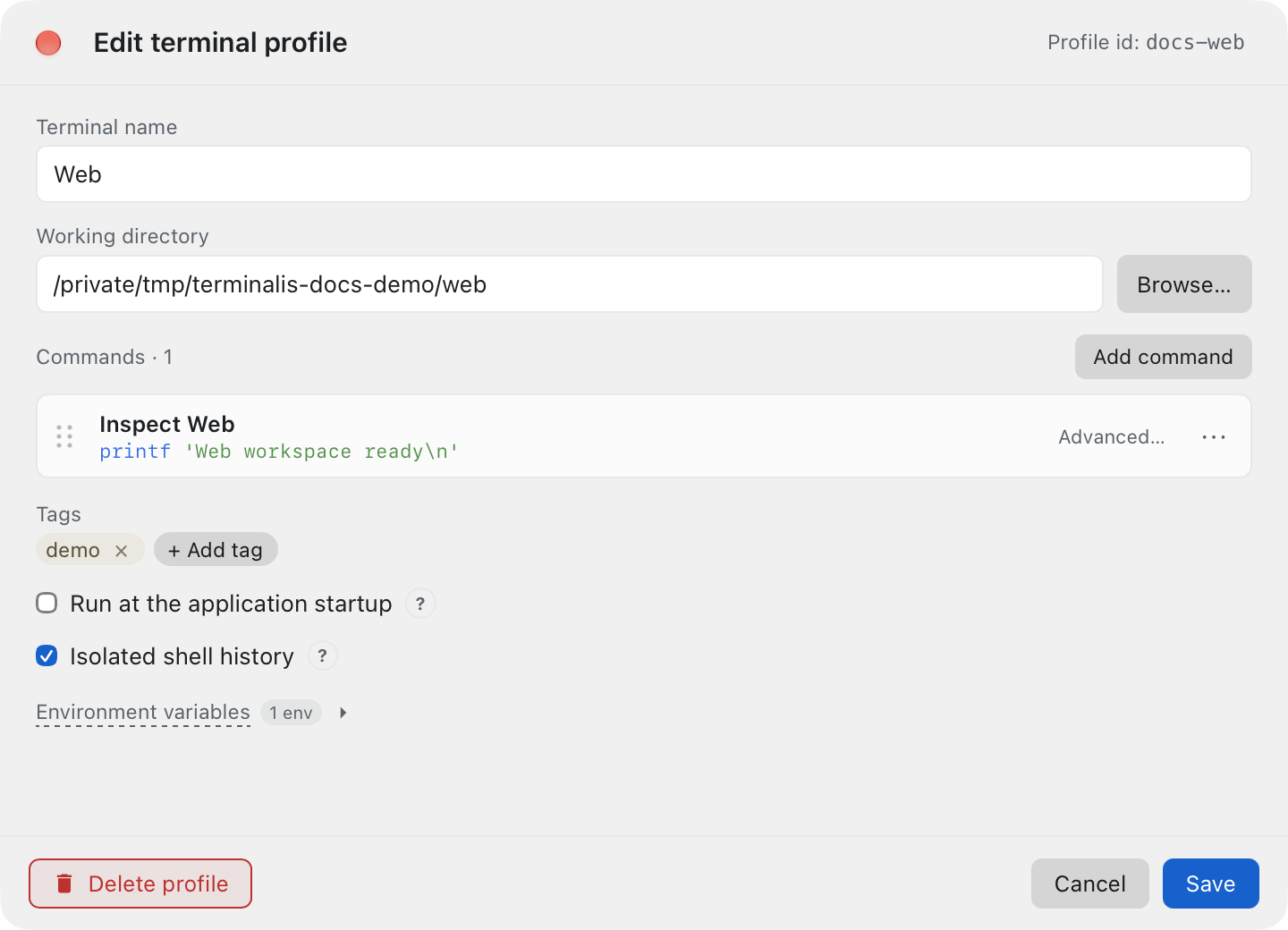
Press Cmd+= or use the main sidebar's + button to open the New terminal editor. Enter Web as the Terminal name, choose its Working directory, and add any Commands or Environment variables it needs. Add a demo tag to keep the three demo services together, then save the profile.
For example, point Web at ~/code/documentation-demo/web and set APP_ENV to development. Choose an existing folder on your machine; creating a profile does not create project files. See Working directories and Environment variables for details.
File → New Terminal or Cmd+T is the quick-create alternative: it makes and selects an automatically named terminal immediately. In a tag page, quick creation adds the new terminal to that tag. From a standalone terminal, it inherits the contextual or preferred tag when one exists; otherwise it is untagged. Edit it afterward to give it a meaningful name and configuration. Creating or saving a profile does not run its saved commands.
On macOS, command-line launching
creates a persistent terminal and runs one command immediately. It uses Untagged unless you pass
--tag, and leaves the saved command list empty with app-open autostart disabled.
Edit a profile
Select the terminal and choose File → Edit Terminal (Cmd+E), or open its gear/context menu and choose Edit. The editor opens in a separate window. Save commits the profile; closing without saving discards the draft.
Changing the name, tags, or command list updates the saved definition. It does not replace an already running command. Stop that command explicitly before running its edited replacement. Changes to the terminal environment, working directory, or history isolation can require reinitializing the shell.
Descriptions are optional text carried by imported profiles and portable files. The current profile editor preserves that description but does not provide a description field. To author one for a shared setup, use the description field in a .terminalis file.
Duplicate a terminal
Choose Duplicate in the terminal's gear/context menu, or File → Duplicate Terminal (Cmd+Option+D). Terminalis creates and selects a copy immediately after the original, adding a number to its name and identity as needed.
The copy retains the saved directory, environment, commands, tags, startup preference, and history-isolation preference. It starts with fresh runtime state, output, and command history. Edit the copy before running it if it needs a different port or directory. Duplicating Web is a useful way to prepare a similar API profile without sharing a shell session.
Delete a terminal
Select Delete in the terminal menu or File → Delete Terminal (Cmd+W in the main window), then review the confirmation if one appears. Profiles without attached commands or environment values can be deleted immediately; removing a tag's final member also requires confirmation. A tag tab's close control uses this same deletion flow: it deletes the profile, rather than simply hiding a tab.
Deletion removes the profile and its terminal-specific history, saved scrollback, and remembered directory. Removing one of its tags instead only changes membership. Export a definition first if you will need it later; exports do not include output or history. In Settings, Cmd+W closes Settings rather than deleting a terminal.