
Importing and sharing setups
Exporting setups
Export a terminal or tag as a .terminalis snapshot to reuse a setup in another checkout or share it with a teammate. The file contains definitions, not live sessions.
Export and import a setup
- Select Web and choose File → Export Current Terminal…, or open the demo tag menu and choose Export tag… to include Web, API, and Worker.
- Choose a destination ending in
.terminalis, such asdemo.terminalis, and review the working-directory mappings. - Choose which environment values to include. Use Name only for a value that the recipient should supply locally, then export.
- Move the file to the other machine or checkout. In Terminalis, choose File → Import .terminalis File… and select it.
- Choose the destination project root, review directories and the import summary, and confirm. Check the copied terminals before choosing a command to run.
Import creates local copies. It does not automatically run commands or establish live synchronization between the original profiles, the file, and the recipient. See directory mappings, environment sharing, and the complete import review instructions for the choices along the way.
Export a terminal or tag
File → Export Current Terminal… exports the active terminal. The sidebar terminal context menu also provides Export Terminal. A tag menu's Export tag… exports that tag's terminals in displayed order. Untagged is not an exportable tag; assign a real tag or export individual terminals.
Choose the destination in the export dialog. Its name must end in .terminalis. Exporting over an existing file asks for replacement confirmation at submission. If the selected profiles or destination change after review, Terminalis asks you to review again rather than writing stale data.
Exports carry descriptions, attached scripts, command names and IDs, their order, selected environment values, requirements, and directory policies. They omit other personal tags, global commands, startup/history preferences, output, shell history, and running state.
Directory mappings
Review mappings independently of the destination file location. A single terminal defaults to .. For a tag, Terminalis proposes paths relative to the deepest common ancestor of its configured directories; unresolved mappings require your input.
For demo directories /tmp/documentation-demo/web, /tmp/documentation-demo/api, and /tmp/documentation-demo/worker, use web, api, and worker. On import, choosing another checkout root resolves all three there. Keep absolute paths only when you intentionally need a machine-specific location.
Export does not rewrite paths inside shell scripts or environment strings. A command containing a personal absolute path still contains it afterward. Review the portable path rules if a mapping is rejected.
Environment sharing
For each authored terminal or command environment entry, choose one of these export modes:
| Choice | File contents | Recipient's next step |
|---|---|---|
| Name & value | Include the authored value, preserving Hide storage metadata where present. | Review and use or change the copied value. |
| Name only | Add the variable name to requiredEnv; omit its value. | Supply a local value before running a command that requires it. |
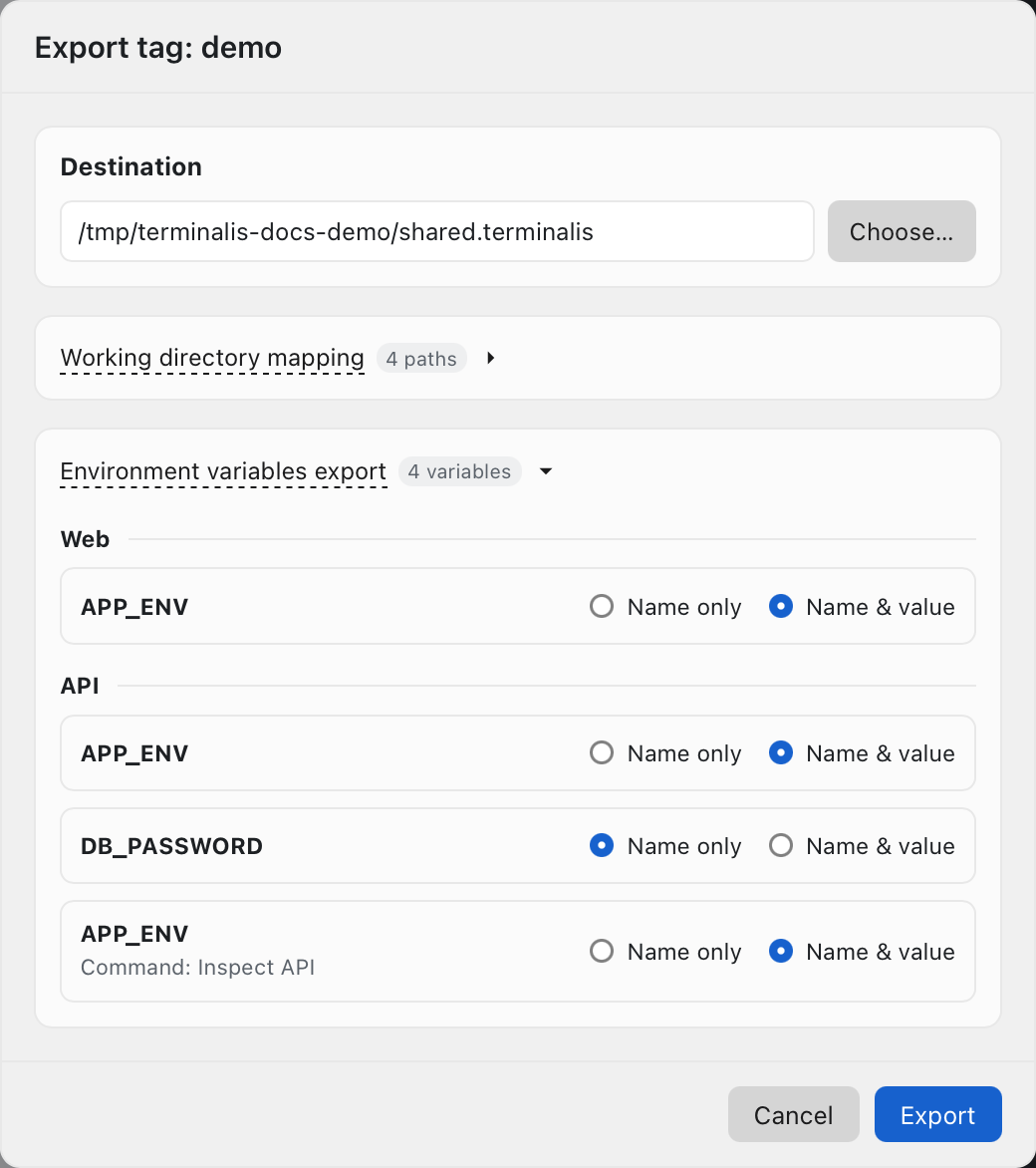
Inherited shell values are not automatically added to the export. Hide is reversible obfuscation, so a hidden value shared with Name & value is still included in recoverable form. Choose Name only when the value should stay on your machine. Review the resulting file before committing or sending it.