Saved commands and process control
Terminal commands
Attach saved commands to a terminal for repeatable work in that profile. A list of commands offers alternatives; it does not run each row in sequence.
Need help writing a command? Command Assistant can generate editable text from a description with Cmd+I. Review the result, then copy it into a saved command if you want to reuse it.
Manage commands
Open the terminal's Edit window and add a row under Commands. Enter a script such as pwd, then use its actions menu for Advanced, Duplicate, or Remove. Drag the row handle to set its order. A friendly name, such as Inspect directory, makes the selector easier to scan.
Save the terminal after editing. Select that terminal, press Cmd+R, choose the saved command, and run it. See the command selector for filtering and keyboard controls. Put commands used across many profiles in Global commands.
Every command needs a nonblank script. If duplicated scripts are ambiguous, give the copies distinct names and let the editor retain their command identities. Saving a changed command does not alter a currently running copy.
Advanced editor
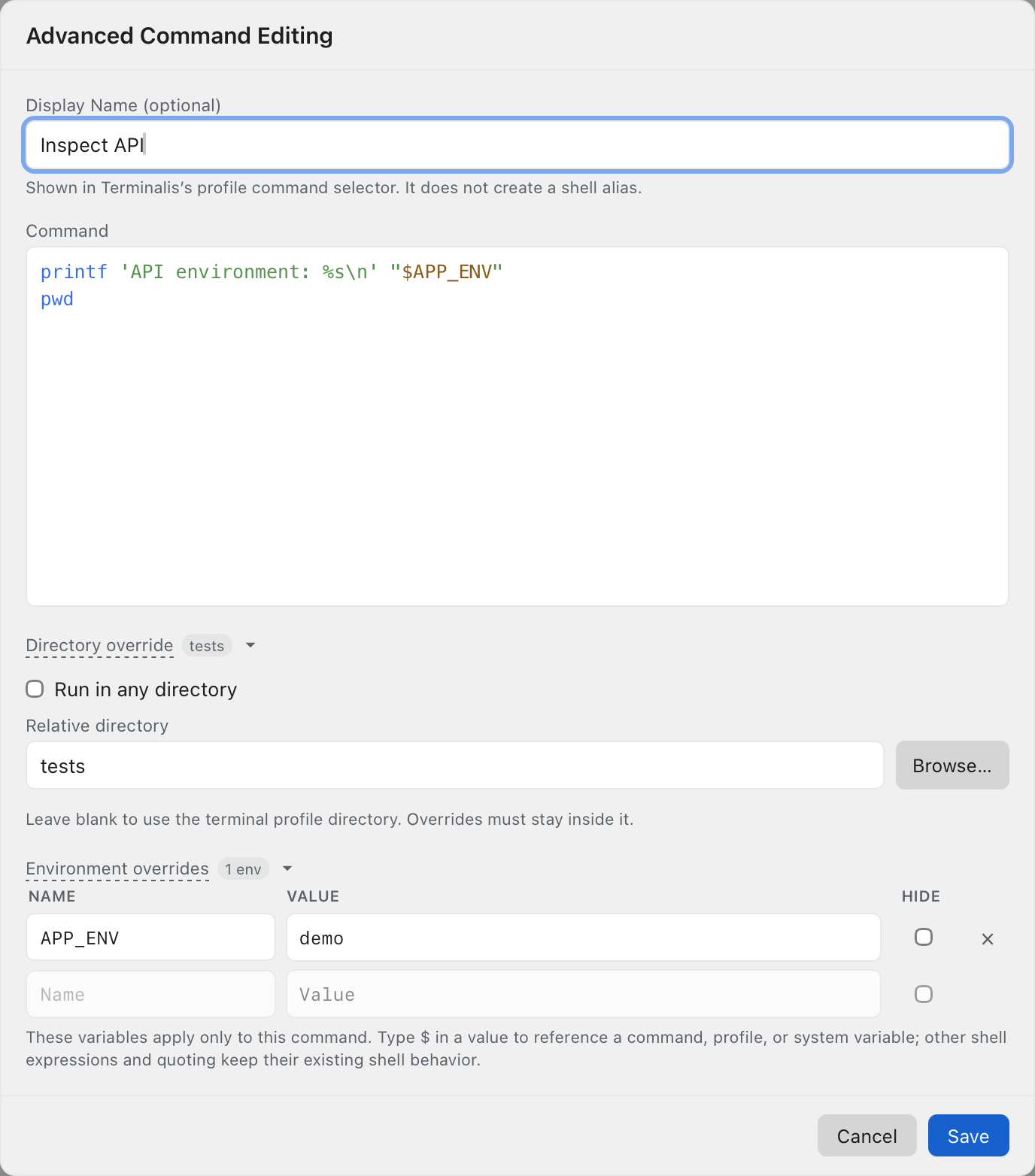
Open a command row's actions menu and choose Advanced to edit its name, multiline script, directory policy, and environment overrides. For a harmless demo command named Inspect API, use:
printf 'API demo\n'
pwd
Press Save or Cmd+Enter to copy the command into the parent profile draft. Then save the profile separately. Escape cancels only the Advanced draft; plain Enter adds a script line. Invalid input keeps the dialog open with its error.
Enable Print compact command label to print the command's name or a short preview instead of its full script. Bash, Zsh, and Fish support this option. Output and interactive input remain visible, and the saved script and command history still contain the command; it is a display preference, not a way to conceal sensitive data. Save the command draft and then the profile.
Command directories
By default, an attached command runs from the terminal's configured working directory, even if you have typed cd elsewhere in its shell. Expand the directory controls in Advanced to choose another policy.
| Choice | Result |
|---|---|
| Default directory | Use the terminal's configured directory. |
Relative directory, such as tests | Resolve beneath the terminal's directory; it must remain inside that directory. |
| Absolute directory | Use that specific existing directory. |
| Run in current directory | Use the live shell directory when you start the command. |
A directory override and the current-directory option cannot apply together. Invalid or missing directories can prevent a run; the editor can warn without creating them. Directory changes are shell operations, so a command may leave the prompt in its selected directory afterward.
Environment overrides
Expand Environment variables in the attached command's Advanced editor. Add a value such as APP_ENV=demo to change it for this saved run without changing the profile's persistent environment. Enter values without extra shell quotes; spaces and quotes are preserved automatically. Overrides can use references and Hide.
These values are scoped to the command execution and restored afterward. The command itself still has the normal powers of your shell, including writing files. Requirements declared by an imported command and its terminal must be satisfied before execution; see Required variables.