Saved commands and process control
Running and stopping
Run a saved command through Terminalis to track it as a managed run. Stop that run explicitly before selecting another one for the same terminal.
Command selector
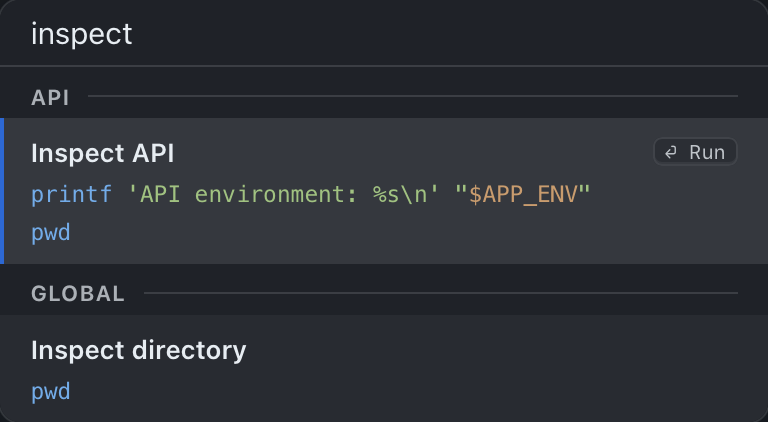
Select a terminal and click its floating command launcher, press Cmd+R, or choose Action → Run saved command. Attached commands appear first in their saved order; global commands follow under Global. When global commands exist, the terminal's own section uses its name.
Type a few words from a name or script to filter the list. Filtering is case-insensitive and keeps the configured order. Arrow keys select a row and wrap through matches; Enter runs the highlighted row. A nonempty filter selects its first match. Cmd+1, Cmd+2, and Cmd+3 run the first three selectable matches, ignoring section headings. Escape clears the filter first, then dismisses an empty selector. Filter text is never executed as a shell command.
Start and stop
Pick a command in the selector to start it. A terminal can have only one managed run at a time. While it is running, starting, or stopping, you can browse the selector but its Run actions and shortcuts are disabled. Wait for completion or choose Action → Stop command (Cmd+.) before starting a replacement.
A terminal with exactly one attached command also has a direct sidebar start action. The green status dot and command footer identify managed work. Stop interrupts the foreground work and leaves the interactive shell available; it does not delete the profile. Re-Initialize is a separate action that replaces the whole shell.
Foreground processes
A command typed at the prompt is manual work. It can become blue after running for about a second, but it is not a managed run. While that work is active, the floating Run pill is hidden. Cmd+R still opens the selector for browsing, with all Run actions disabled until the shell is idle.
Explicit Start actions outside the selector can still interrupt and reclaim manual foreground work before injecting a saved script. The direct sidebar start path can ask for confirmation; tag Start all can also reclaim manual work.
Finish or stop manual work before starting a saved command if it should not be interrupted. Stop applies to managed and visible long-running manual work. Explicit Stop and Ctrl+C do not count as command failures or successful completions for alerts.
Start on launch
Edit a terminal with exactly one attached command and check Run at the application startup. Save it; the option does not run the command immediately. It is disabled for zero or multiple commands, and global commands are never startup candidates.
The option applies when the terminal belongs to the launch initialization set. Terminalis initializes at most ten profiles at app launch, preferring recent ones, so a profile outside that set is not guaranteed to start automatically. Opening it later initializes its shell without implicitly running its saved command. Importing, saving, or externally reloading profiles does not trigger startup commands.
Tag actions
Give Web, API, and Worker the same tag, then open that tag's sidebar menu and choose Start all. Eligible idle terminals with exactly one attached command start that command. Members with zero or several attached commands, or an already active managed run, are skipped. Global commands do not count toward the single-command rule.
For a demo stack, attach one service command to each terminal. If API instead has both a development command and a test command, Start all leaves the choice to you; open API's selector to run one. There is no dependency graph or readiness ordering between services.
A manually started foreground process is not protected by the managed-run skip rule: bulk Start can interrupt it just as an explicit saved-command start can. Check members before starting a stack. Choose Stop all in that tag's menu to stop work in its members. Other tags may show those same terminals because membership does not create separate sessions.
Stop all
Choose Action → Stop all to stop foreground work across the app. Use the tag menu's Stop all for a smaller group. Idle shells remain available, profiles and saved commands remain configured, and output stays visible.
If a program resists an interrupt, stopping can escalate to termination. Save anything that must survive before using bulk stop. To leave the app entirely, use the quit flow.