
Importing and sharing setups
Importing .terminalis files
Import a .terminalis snapshot to create ordinary local terminals. The file can describe one terminal or a tagged collection, such as Web, API, and Worker.
Review an import
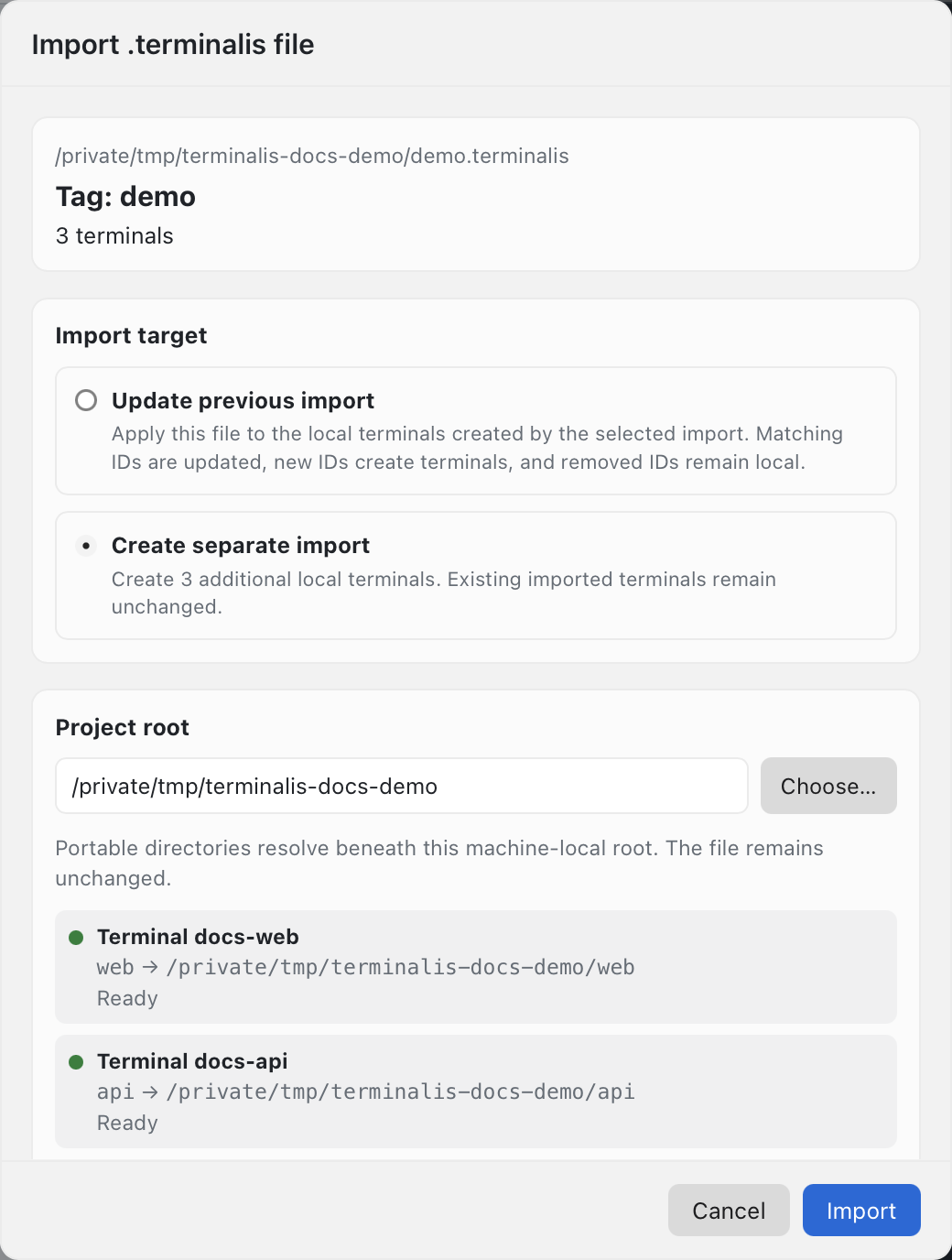
Choose File → Import .terminalis File… (Cmd+O) and select the file. Review its kind, terminal count, project root, directory status, and whether you are creating a new import or updating an existing one. Inspect scripts and environment choices before you later run any imported command.
Confirm the reviewed import to copy the definitions into Terminalis. A tag file adds its tag to the imported terminals and preserves their relative order; a single-terminal file carries no tag. Imported profiles can be edited, retagged, duplicated, or deleted like any other local profile.
Choose the project root
The review proposes the file's parent directory as the project root. Choose the existing local checkout where your project lives. A relative terminal path such as api resolves beneath that root; a relative command path such as tests resolves beneath the terminal directory.
Absolute paths keep their stated location rather than following the root. Missing folders appear in review and must be created or corrected before affected work can run. Import copies definitions; it does not clone a repository, install dependencies, or create the project's directories.
Validation
Portable files use strict YAML and explicit versions. Unknown fields, duplicate keys, invalid names, unsupported versions, unsafe paths, or invalid environment values produce validation errors. Fix the source and select it again. See the file reference for accepted fields and limits.
Paths cannot use .., ~, backslashes, or environment interpolation. Relative paths must stay within the chosen root, including through existing symbolic links. Quote YAML environment values such as "8080" and "true". Shell scripts are copied as authored; validation is not a command sandbox.
Update an import
To apply a later snapshot, select the file again and choose Update previous import. Terminalis uses a local receipt to associate stable file IDs with local profiles. It proposes a compatible prior import at that source path; if several match, choose the one you intend to update. You can also deliberately select a compatible import from another checkout.
An unchanged terminal ID updates the same local profile. New IDs create new profiles. Entries removed from the source remain local terminals; they are not silently deleted. If a removed ID returns later, its retained mapping can reconnect to the same local profile. Rename displayName rather than changing id when it is still the same terminal.
Re-import reapplies source-owned fields, including scripts, descriptions, directories, and environment values, so local edits to those fields may be replaced. If an active shell needs its changed directory or environment applied, choose when to reinitialize it.
Local state
Import never runs commands, watches the source, or creates live synchronization. Local editing does not write back to the selected file. Export again when you want a new shareable snapshot.
An update preserves local profile identity, unrelated personal tags, startup preferences, history isolation, and history. A changed imported tag replaces the previous imported tag without removing unrelated memberships. Imported member order follows the file while unrelated local terminals retain their place. The receipt is local bookkeeping, not a connection to the source machine.