
Tags and navigation
Moving around
Use tag pages to work within a service group, quick search to find a terminal, and recent switchers to return to work without scanning the sidebar.
Tag pages
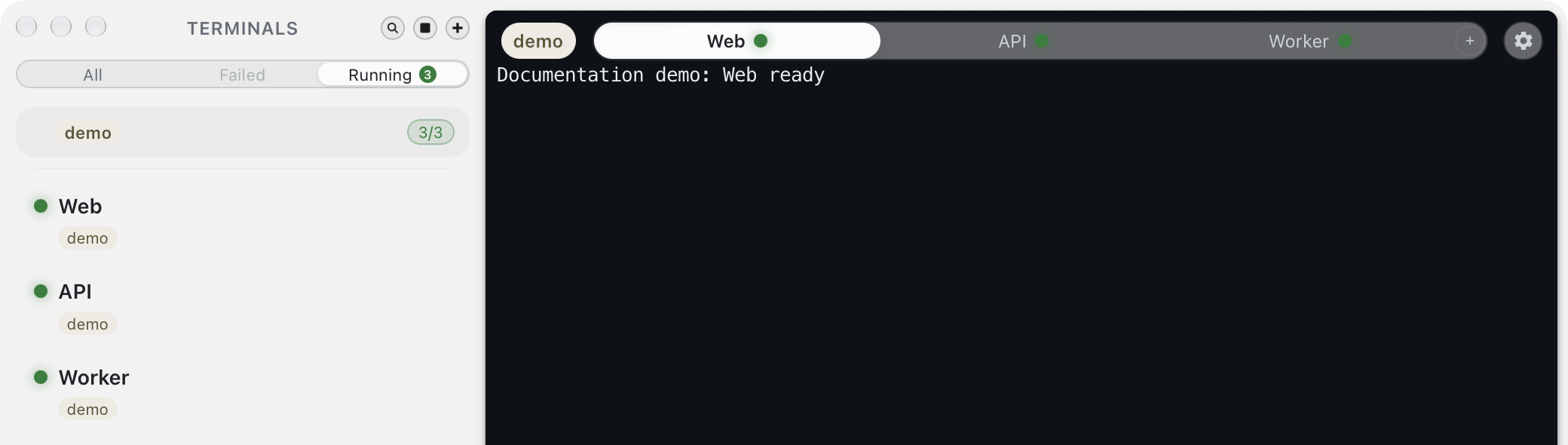
Click a tag's label in the sidebar to open its page. Its member terminals appear as tabs across the top. The chevron beside the tag expands or collapses sidebar rows; it does not open the page.
Opening a tag restores its last selected terminal when that terminal is still a member. Otherwise Terminalis keeps the active terminal if it belongs to the tag, or selects its first member. Clicking an individual sidebar terminal opens that terminal's standalone view.
Terminal tabs
Click a tab to select its terminal; other terminals keep running. Drag tabs to reorder them. The tab close control uses the profile deletion flow, and may delete a configuration-free profile immediately; it is not a hide-tab control.
Within a tag page, Ctrl+** moves to the next tab and **Ctrl+Shift+ moves backward. Cmd+Shift+] and Cmd+Shift+[ move among terminals in the current group and also work from a standalone terminal view when its group is known.
Quick search
Press Cmd+P or choose Action → Jump to terminal. Type part of a terminal name or tag, move through results with the arrow keys, and press Enter. Escape or Cmd+P dismisses the search.
The empty search starts with recent terminals and fills available space with other profiles, up to ten results. Name and group matching is fuzzy. A tag match can open that tag page with the matching terminal selected. Search selects existing terminals; it does not create them or execute commands.
Recent switchers
Hold Ctrl and press Tab to cycle recent terminals. Add Shift to cycle backward. Release Ctrl to select the highlighted terminal; Escape cancels while Ctrl is held. The list is capped at ten and can include running or failed terminals beyond your recent selections.
Hold Ctrl+Option and press Tab for the group switcher; Shift reverses direction and releasing Ctrl commits. This includes recently opened tags and Untagged. A switcher with fewer than two available choices does not open. These shortcuts differ from macOS's Cmd+Tab application switcher.